Download
To install app, search for "ActivityExchange" (one word) in your respective App store and follow the prompts to install on to your device or use the links via our Downloads page.
Configure Account
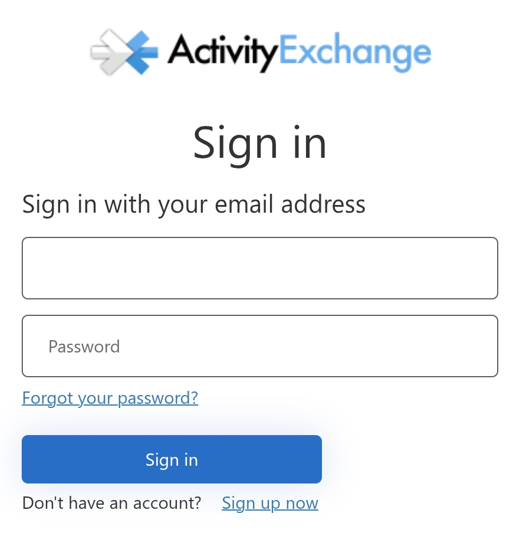
Open up the ActivityExchange app and select sign in.
If you're an existing user, enter your email and password. If your a new user, select "Sign up now".
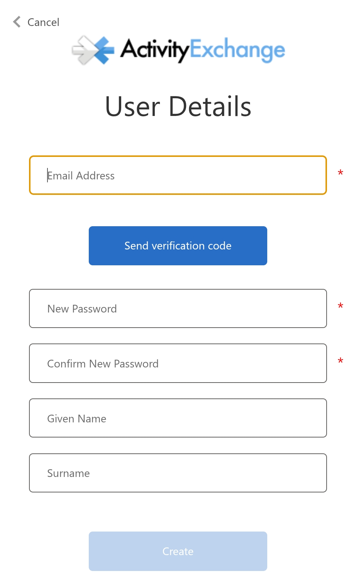
New User Sign-in
Enter your email address and select "Send verification code". An email will be sent to your nominated email account and you will be provided with a verification code. Enter your verification code, complete the remaining fields and select "Create".
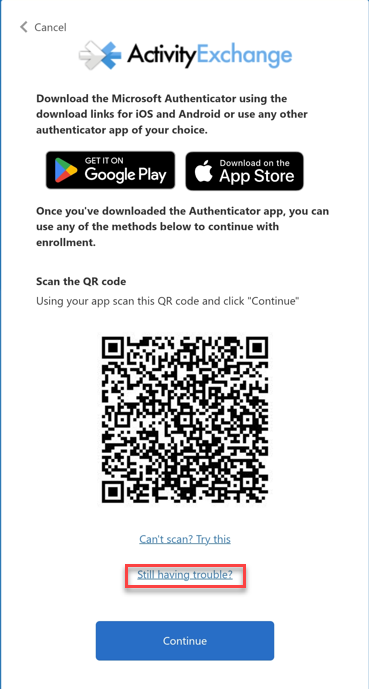
As this is your first time using the App, you will need complete the Microsoft Authenticator process. When completing this process via mobile, this process may need to be completed manually Click on "Still having trouble?"
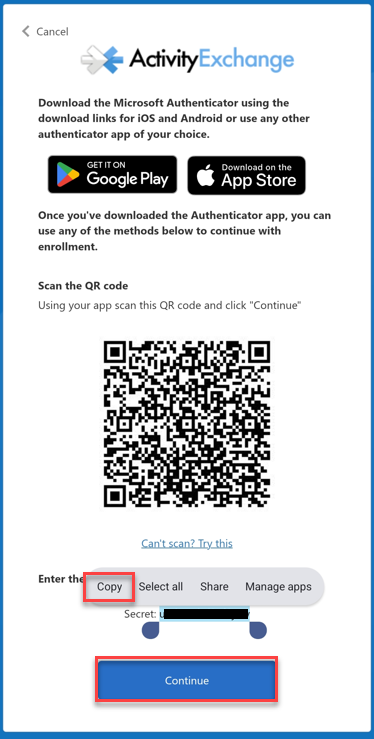
The next screen will provide you with 'access secret code'.Copy the code and select continue.
Next screen will ask you to enter your username (email address used in AE login) and enter the 'access secret code'.
Project Access
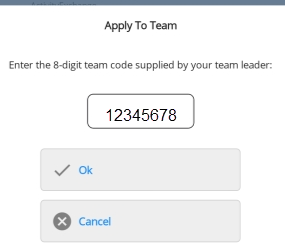
Once you have logged in, the next window will prompt you for your team code, which your team leader has hopefully supplied to you.
Once your team leader has approved your access, when you return to the home screen you should see your new team listed. If it's not listed go to the menu button and select "Refresh".
Request Access to Additional Projects
Select the "Menu" button located on the top right of your device. Select "Apply to a Team".

The next screen you will enter your 8-digit code supplied by your team leader.
When you return to the home screen, you should see your new team listed. If it's not listed go the menu button and select "Refresh".