Download
From the ActivityExchange website select the Downloads link from main menu and follow prompts.
Configure Account
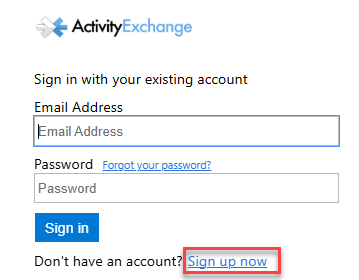
As this is your first time accessing the AE platform the login window will appear. From here, click "Sign up now" button as illustrated and then follow the prompts to create your account.
Project Access
After you have completed the account set-up process and you are logged into AE, you can select your project.
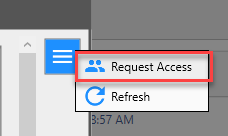
If you don't have access to a project you will need to request access. Open the menu on the right and select "Request Access".
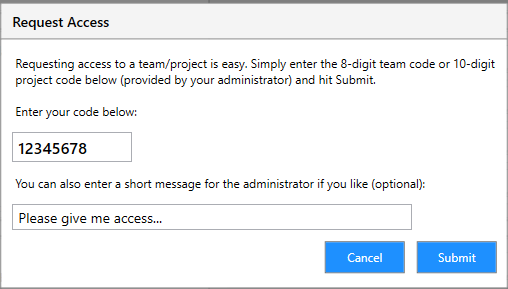
Your administrator will provide you with a unique 8-digit team code or 10-digit project code that you will need to request access.
When the administrator has granted you access and you have logged back into AE you will see your available Project/Team workspaces.